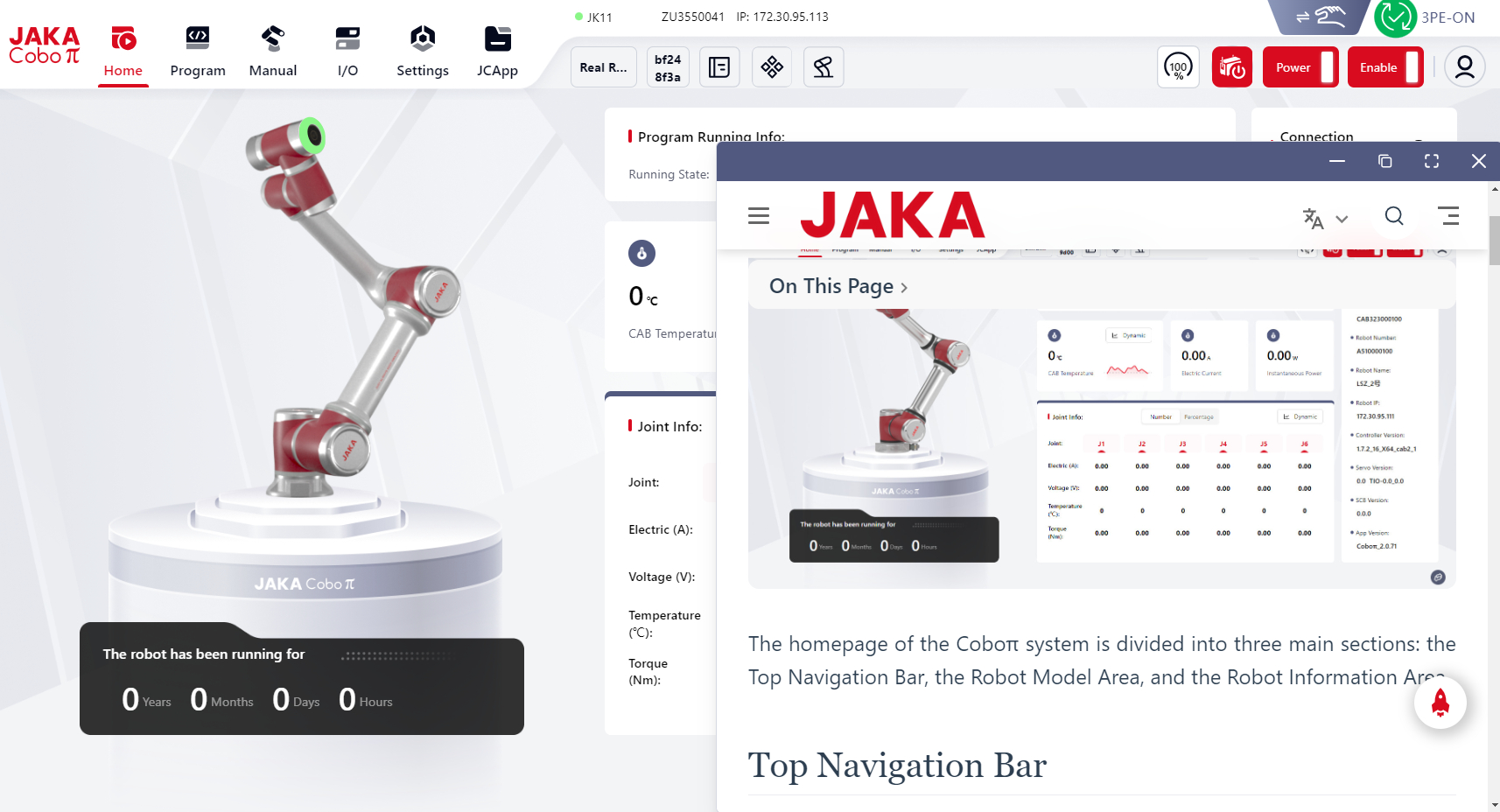
Homepage
Homepage
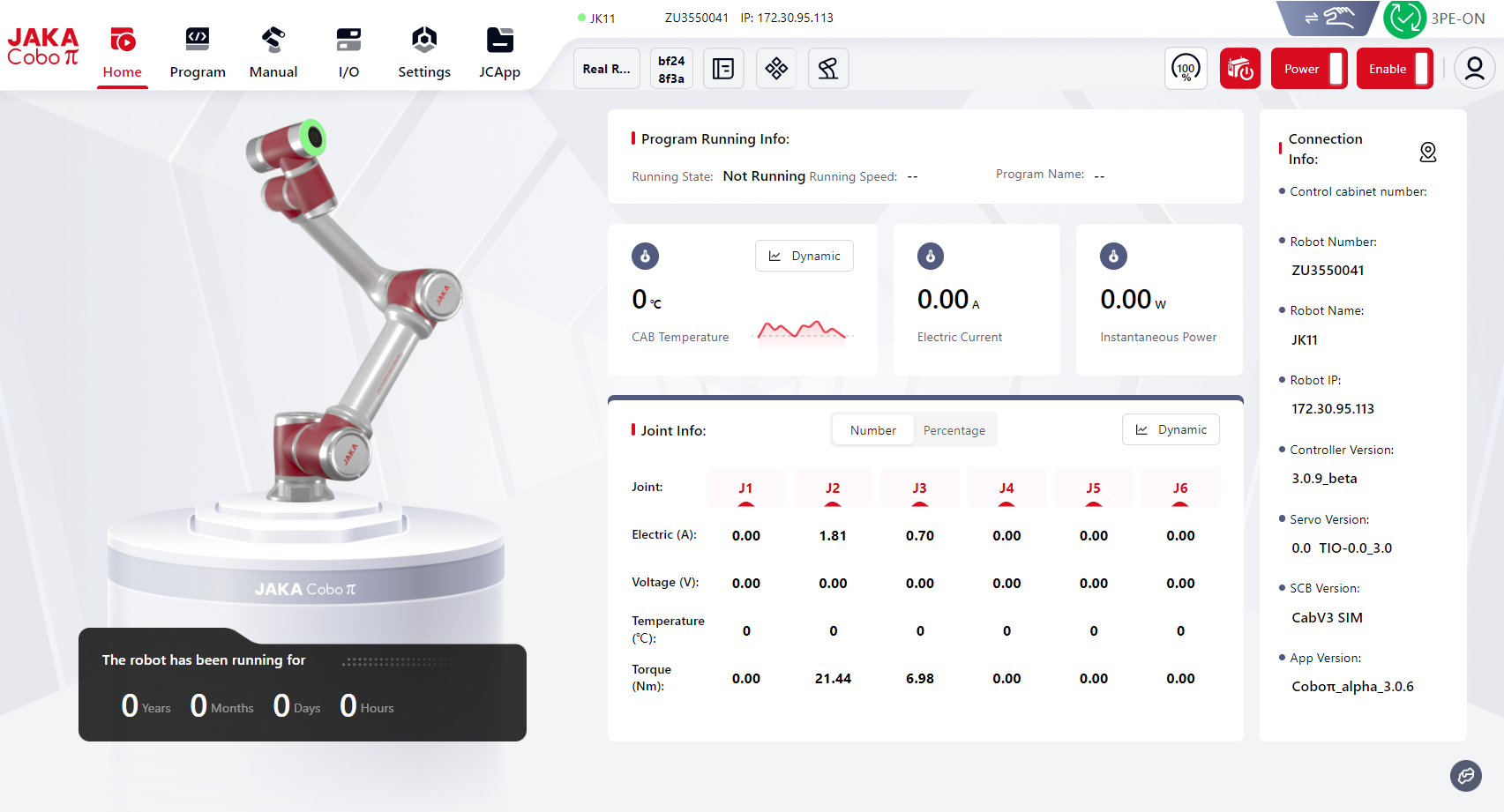
Homepage has the entry of all basic functions.
Homepage can be divided into three parts: Top Menubar, Robot Model Area and Robot Information Area.
Top Menubar
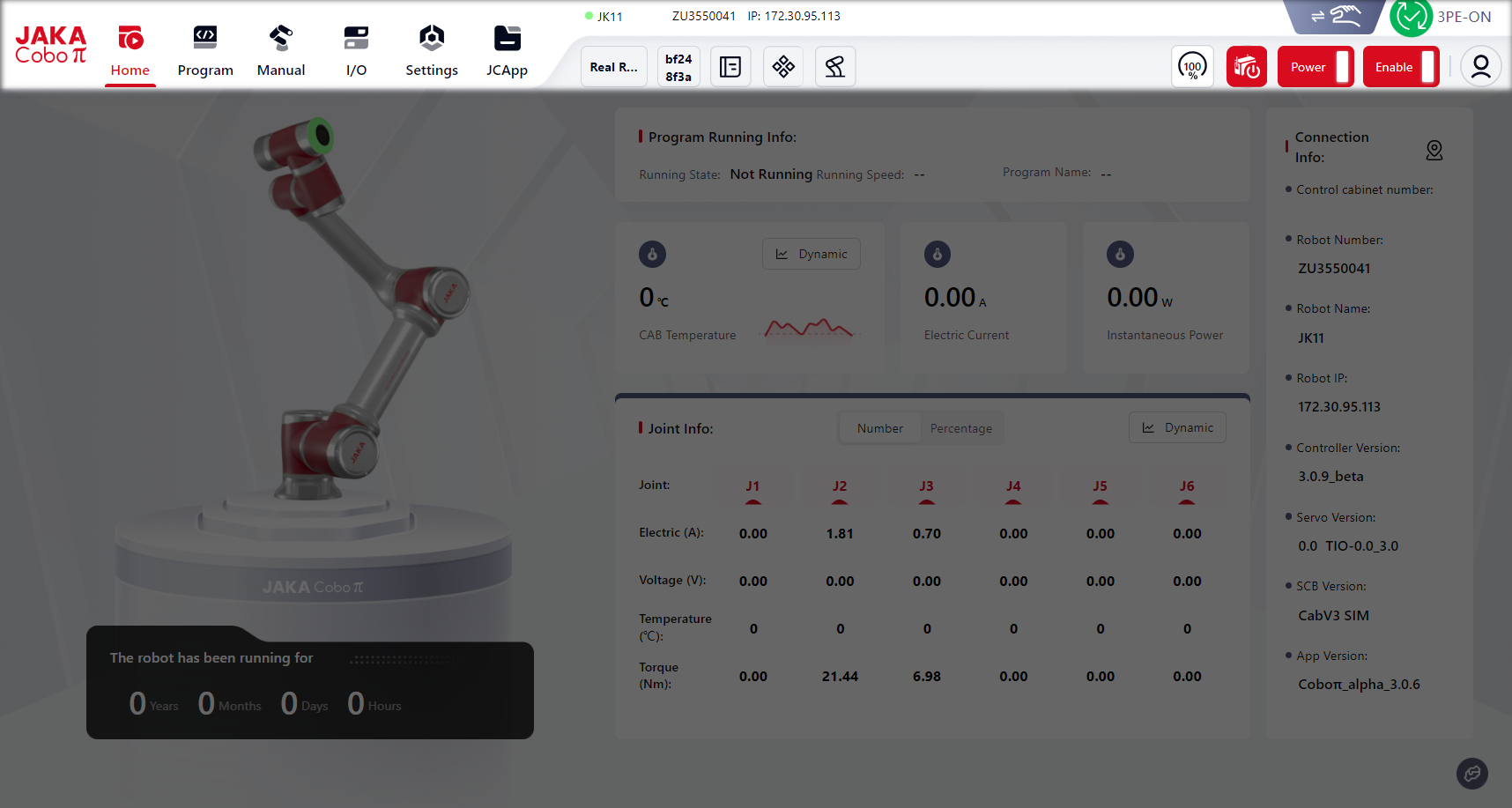
For detailed descriptions, please refer to TBA
Robot Model Area
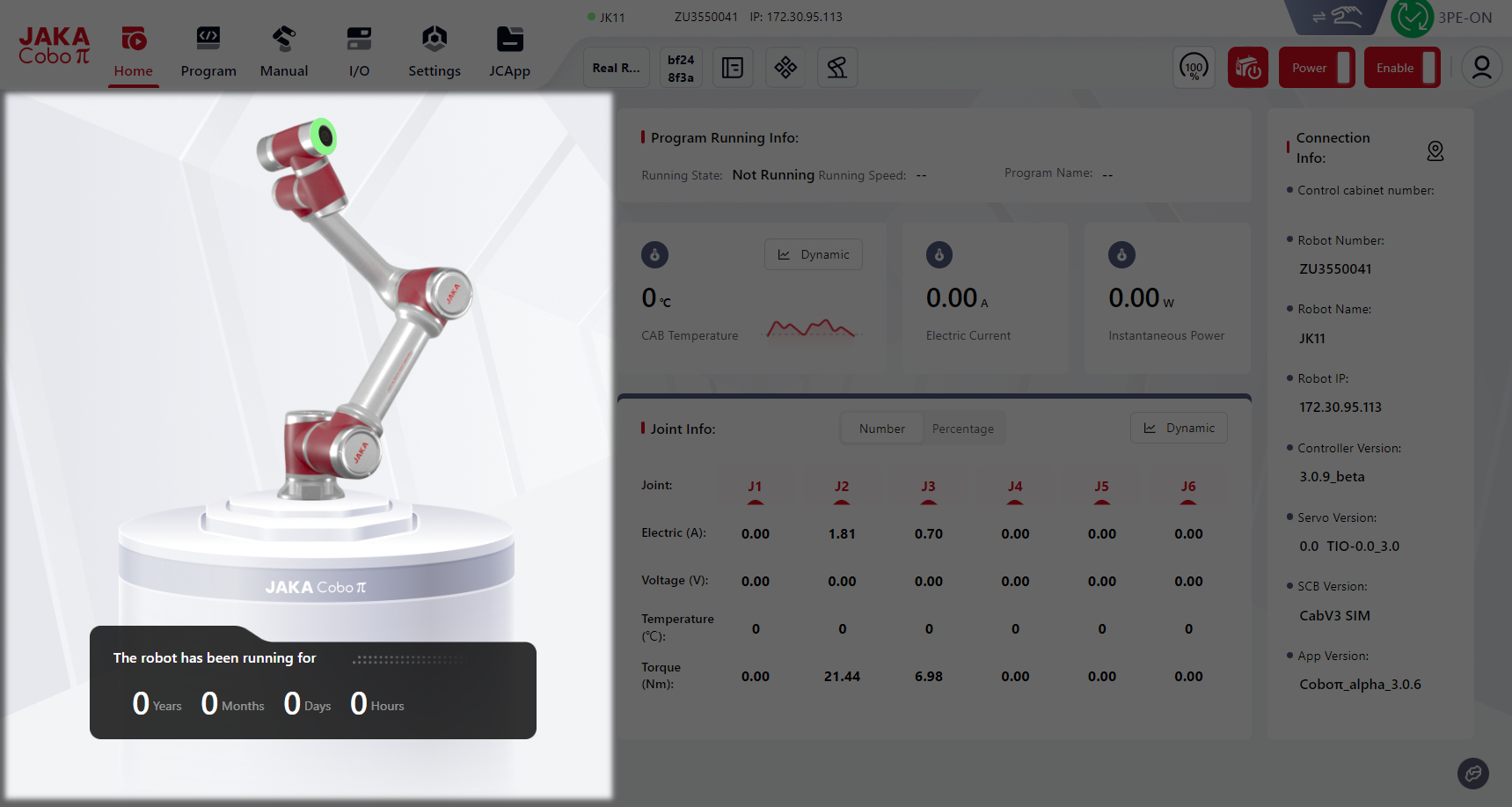
The robot model displayed in this area is in consistency with the real robot and the virtual robot the user uses.
As shown below, the color of the end effector's ring-shaped light matches the color of the indicator light in the top navigation bar:
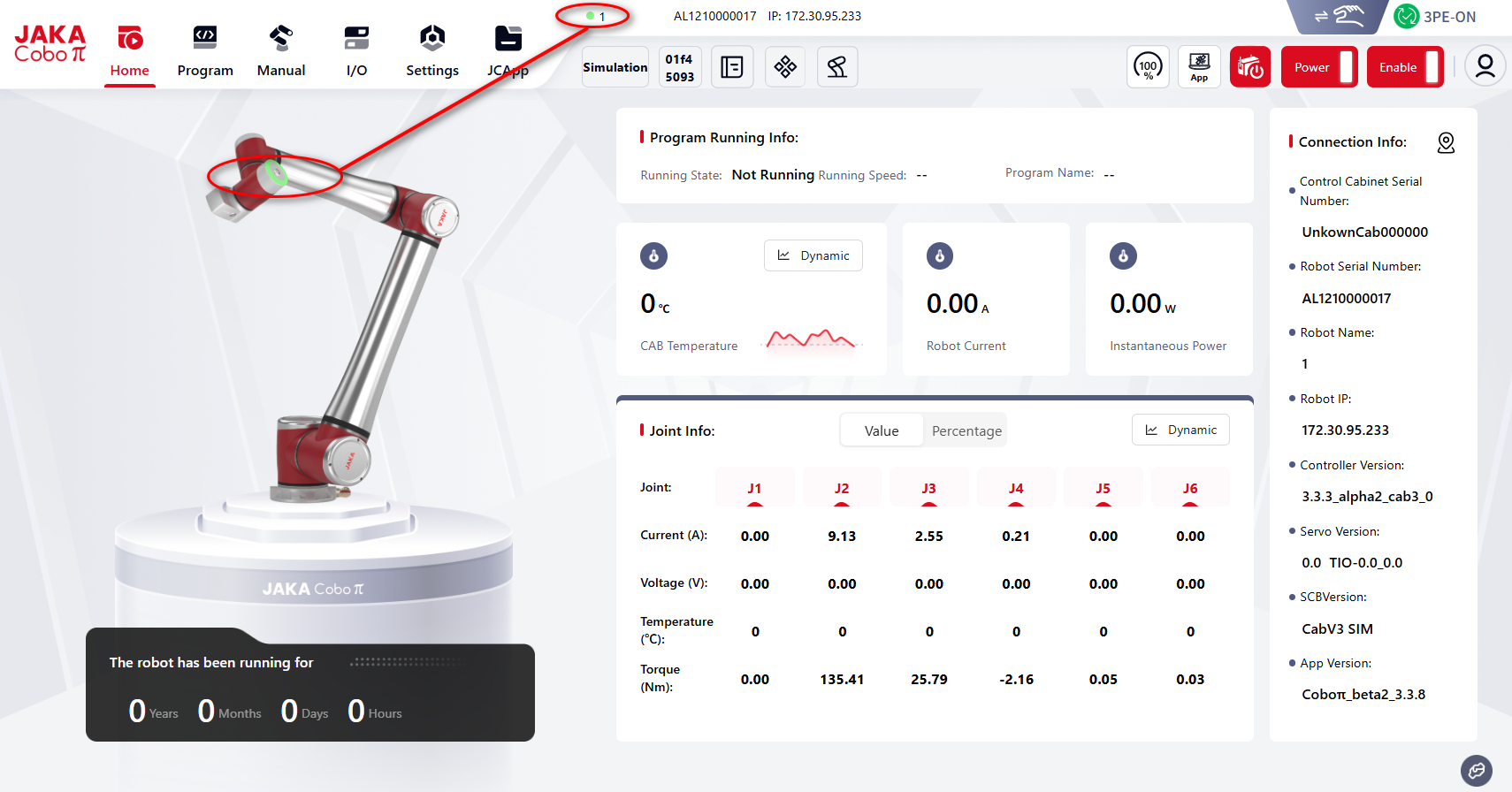
Different color indicates different robot state:
| Robot Ring-shaped Light Color | Coboπ Interface Light Color | Robot Status |
|---|---|---|
| White | White | Not powered on, not enabled |
| Blue | Blue | Powered on, not enabled |
| Green | Green | Powered on, enabled |
| Red | Red | Fault |
| Red | Red | Protective stop |
| Yellow | Yellow | Drag mode |
| Flashing Yellow | Yellow | Pause mode |
Robot Information Area
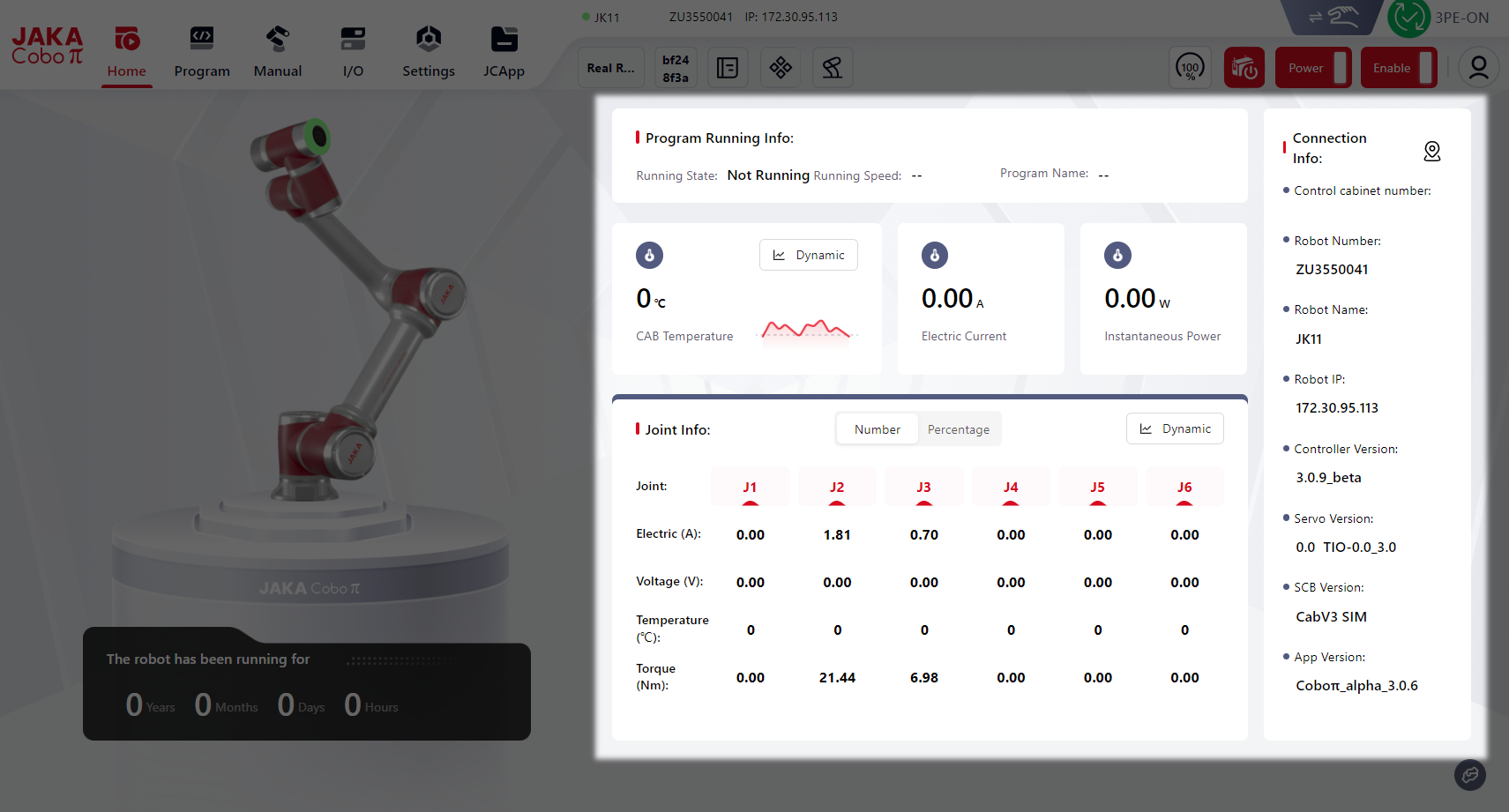
The robot's Program Running Information, Joint Information and Connection Information are all displayed in this area.
Program Running Information
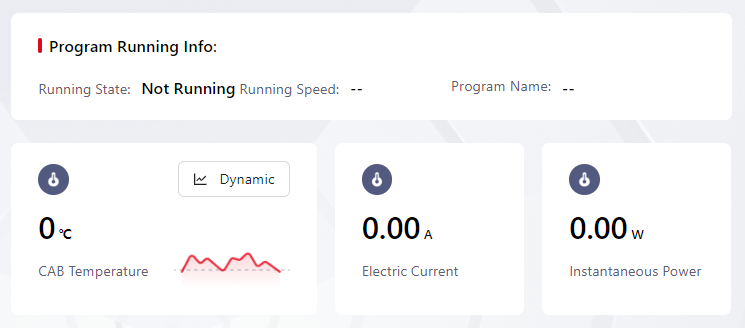
The robot's current program running information is displayed here, including whether there is a program running or not, the name and running speed of the program, the control cabinet's temperature, the robot's electric current and instantaneous power.
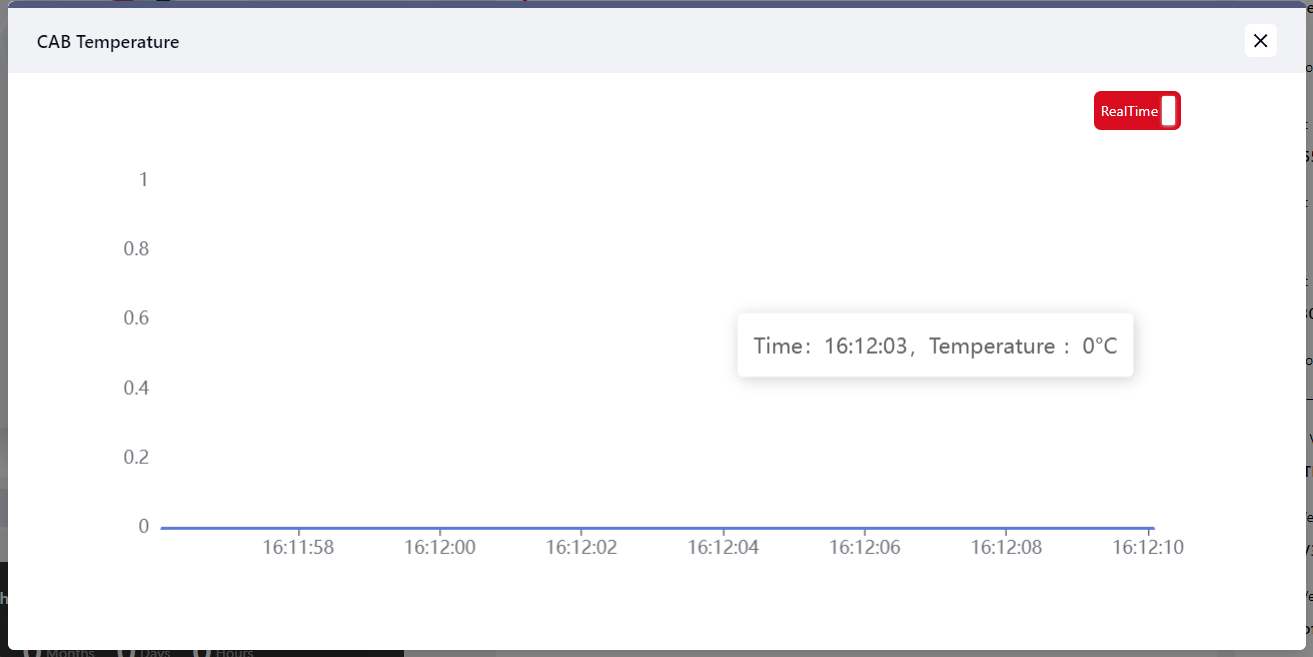
Click Dynamic to see the simultaneous temperature data of the control cabinet.
Joint Information
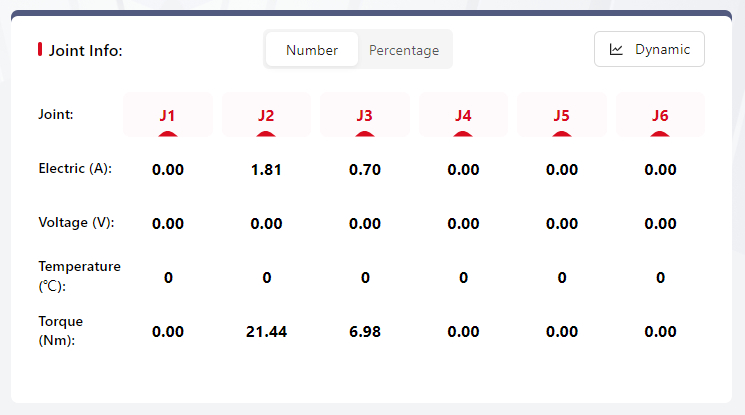
The robot's joint electric, voltage, temperature and torque are displayed here.
Click Number and Percentage to change the way these data are displayed.
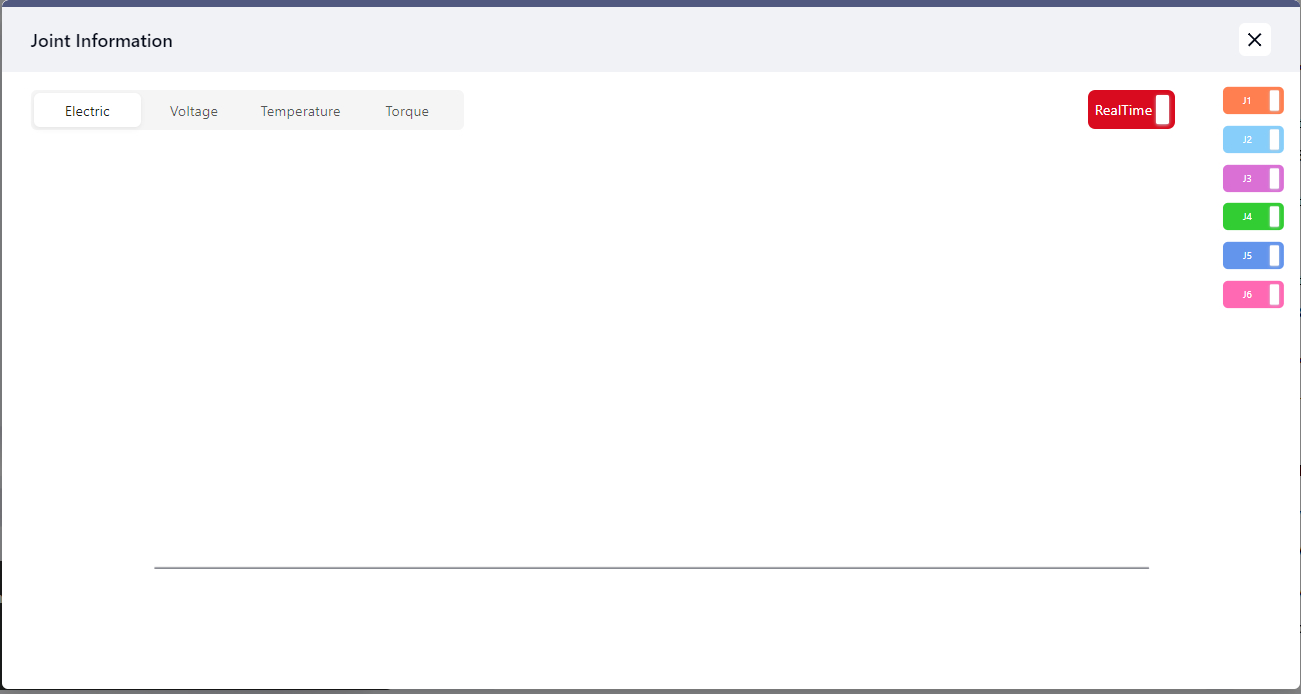
Click Dynamic to see the simultaneous changes of these data.
Tips
Pictures above are screenshots of the virtual robot, that's why the values in it are 0.
When connected to real robots, these values would be the robot's exact data.
Connection Information
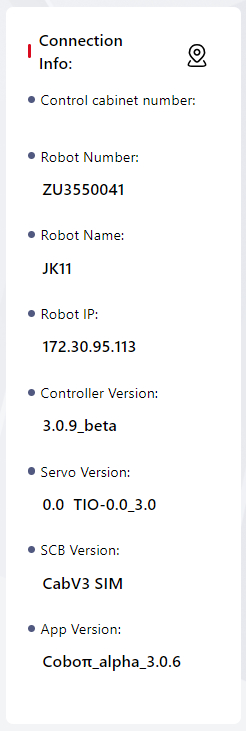
The Control Cabinet Number, Robot Number, Robot Name, Robot IP, Controller Version, Servo Version, SCB Version and App Version are displayed here.
To help users locate the currently connected robot, users can use the robot and handle light flashing feature.
Once the robot is connected and powered on, users can click the icon at this location. The end light of the connected robot, the handle light, the end light of the robot model on the Coboπ system homepage, and the status light on the top navigation bar will all flash alternately in the sequence of red, yellow, and blue.
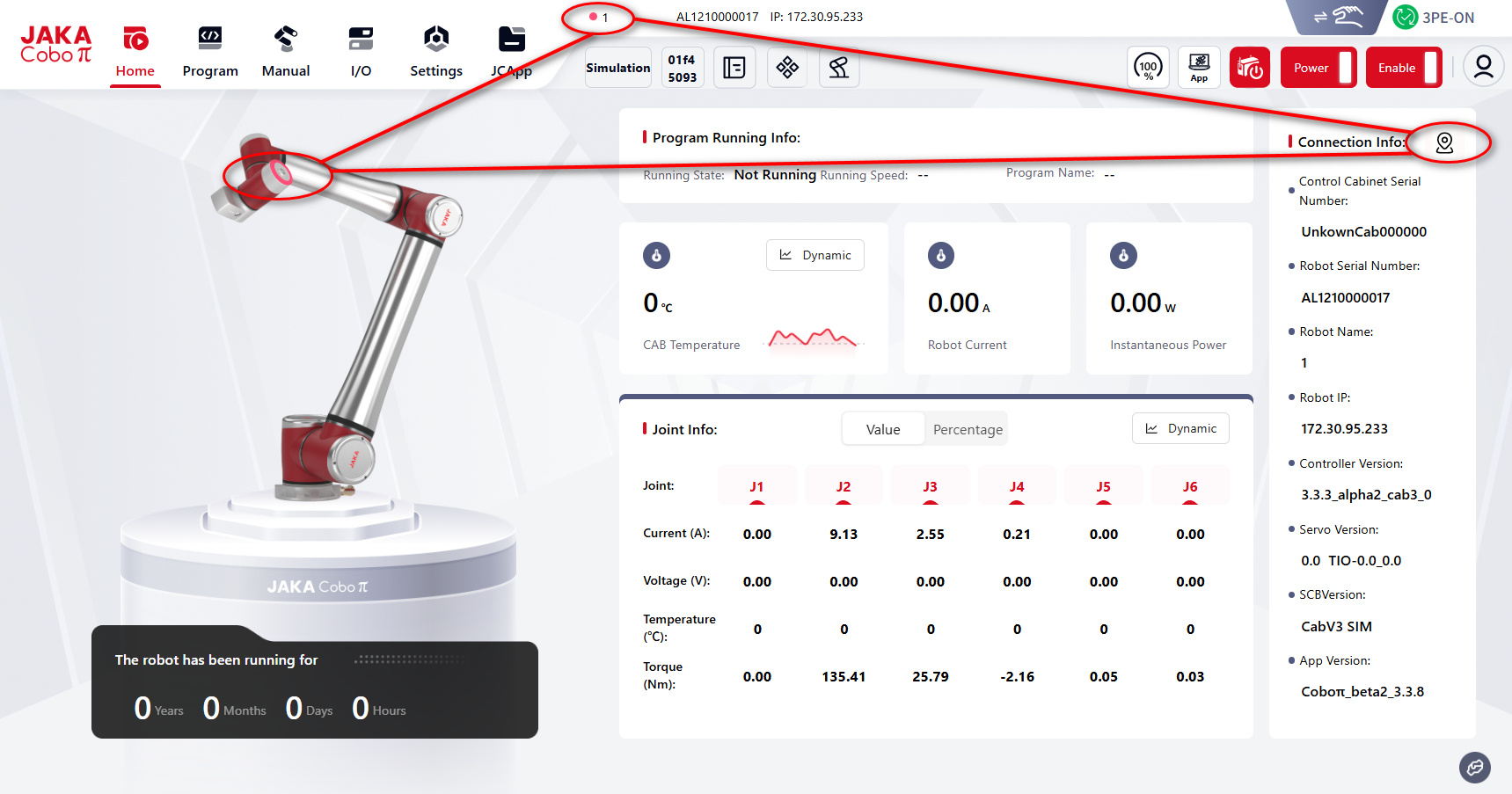
If the icon is clicked while the robot's indicator lights are flashing due to other functions, the robot will retain the colors associated with those functions and will not be affected by this operation.
Help Button
Tips
This button can be found on any pages of Coboπ. The content shown after clicking it would be the user manual of the corresponding page.
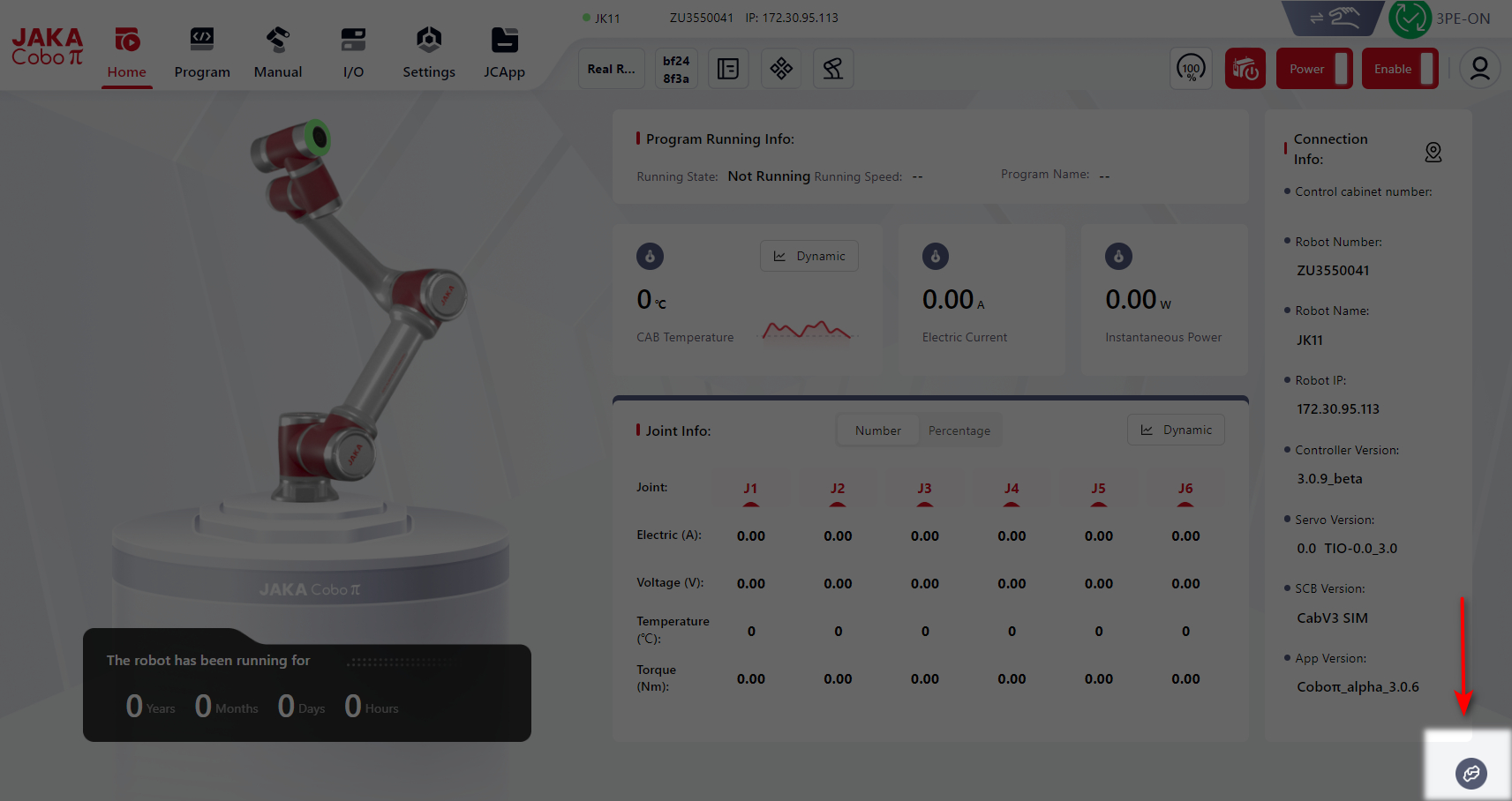
Click this button to see the Beginner's Guide and Help Center.
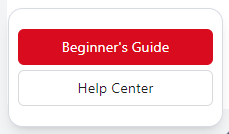
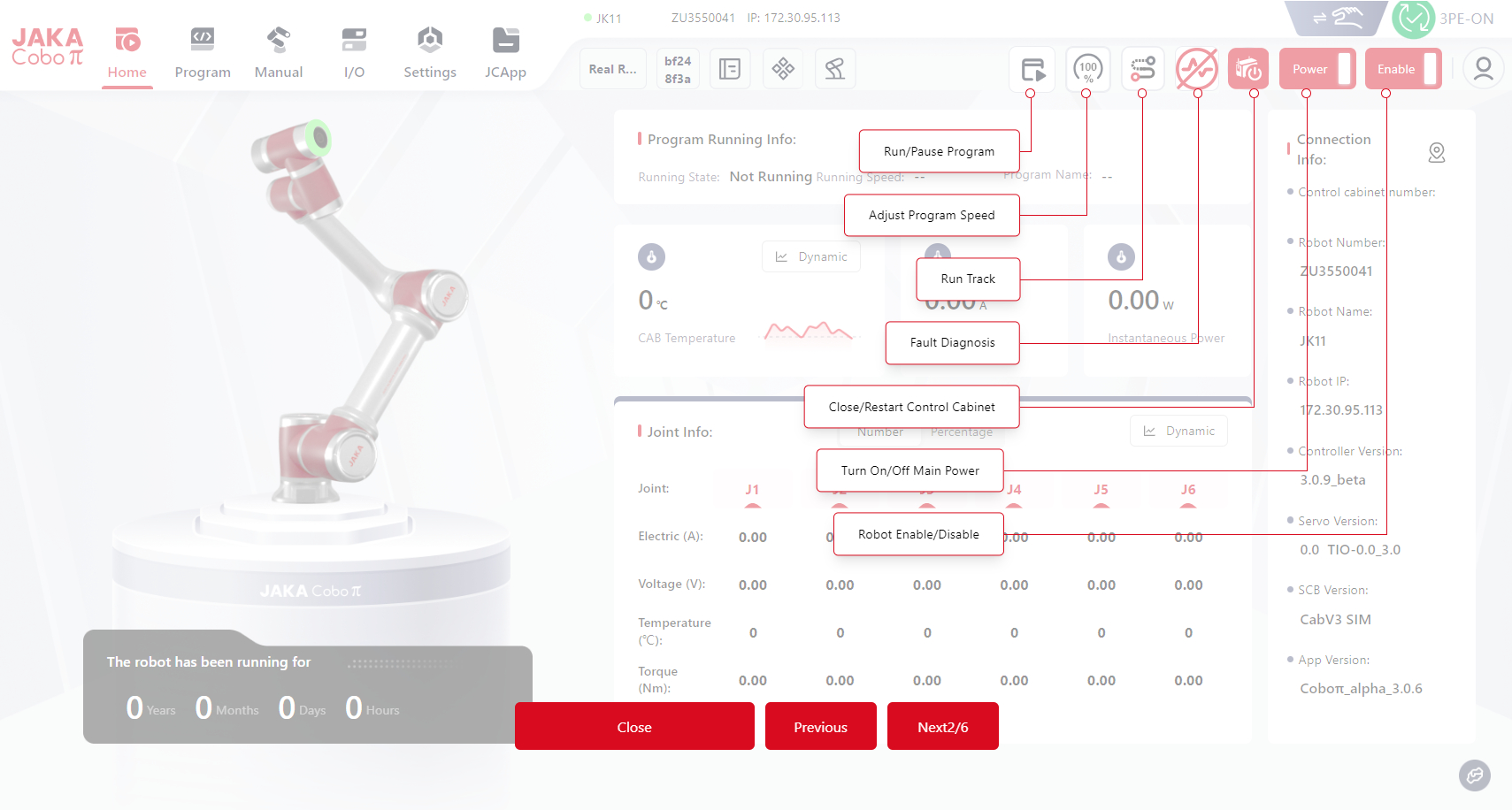
- Beginner's Guide
Click to see the function of each button in the interface:
- Help Center
Click to see the user manual of each page: